



Arch Linux Post-Installation Guide
_author: TatoNaranjo
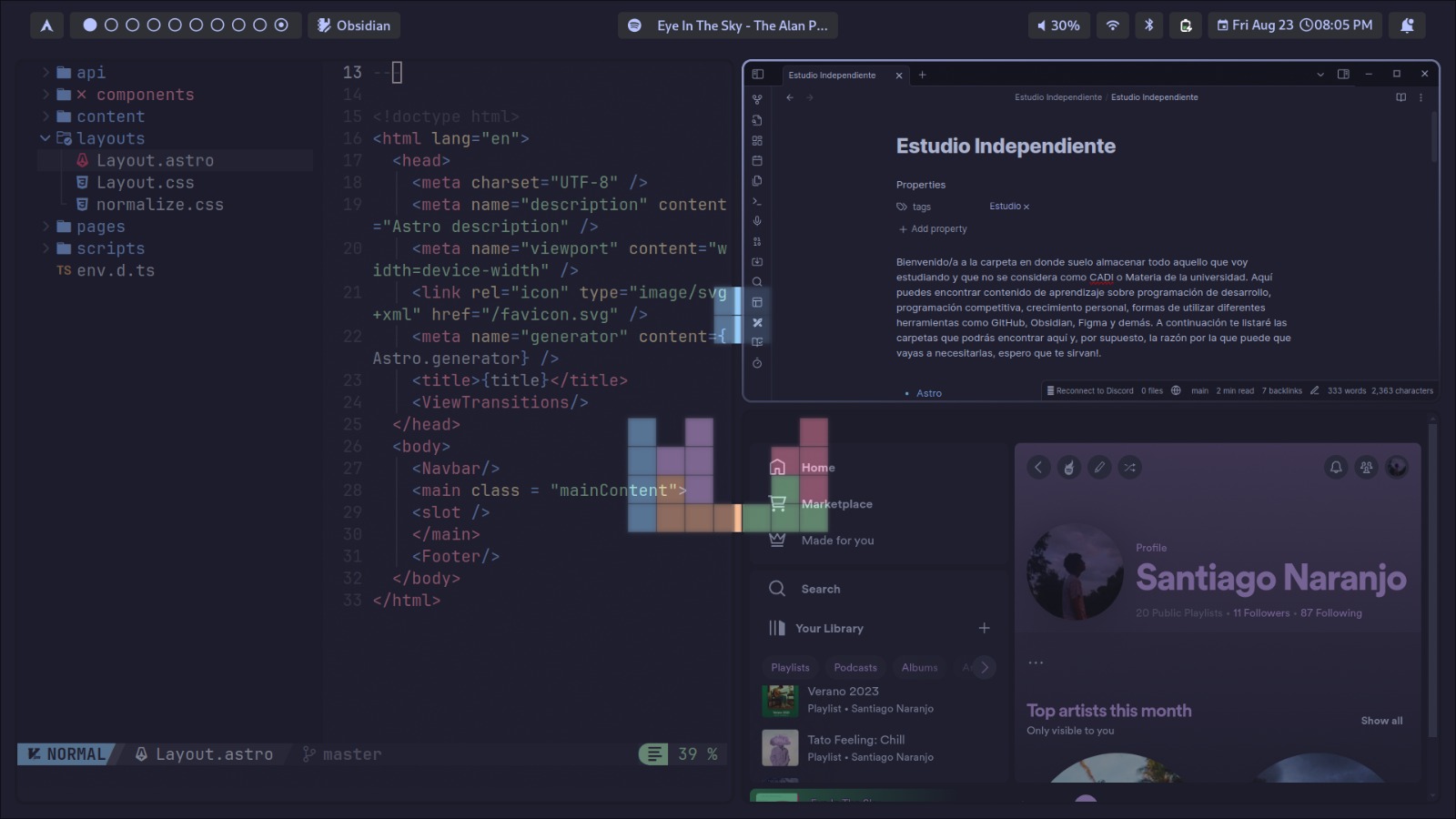
Well, it looks like you’ve completed the installation of your new Linux distribution, meaning you’ve taken the first step and accomplished quite a feat in the Linux world. Now that your system is up and running, it’s time to get to know the underlying components so you can customize it to fit your needs.
This is a long post, so here is a table of contents to help you navigate through the topics. Although I recommend reading each section in order, you can jump directly to what interests you most.
Table of Contents
- What is a Desktop Environment?
- What is a Display Server?
- Difference between Xorg and Wayland
- How to Install Applications?
- Recommended Packages
- Introduction to Customizing GNOME
- Troubleshooting
What is a Desktop Environment?
A desktop environment is a software layer that sits on top of your computer’s operating system, providing a more user-friendly and customizable graphical interface. Since the entire Arch Linux installation is done via the console, the system gives you the freedom to choose a desktop environment that replicates or even enhances the experience you might have with Windows or macOS.
To find out which graphical environment you are using, you can enter the following command in the console:
echo $XDG_CURRENT_DESKTOPHere are some well-known desktop environments:
- GNOME: Clean and modern design.
- KDE: Offers a wealth of customization options and applications.
- XFCE: Lightweight and fast, ideal for limited resources.
- Hyprland: A tiling Wayland compositor that offers complete customization from the console.
What is a Display Server?
A display server (or X server in Linux) is software that acts as an intermediary between the graphics hardware (like your GPU) and the applications you want to run. It handles graphic input and output, manages window displays, and coordinates user interaction.
Difference Between Xorg and Wayland
Xorg
The oldest and most widely used display server. It functions as a central server that manages all graphical operations, from user interaction to presenting content on the screen.
Wayland
A more modern and lightweight compositor protocol. Unlike Xorg, Wayland does not act as a central server; instead, each application communicates directly with the compositor, resulting in a more efficient system.
How to Install Applications?
Pacman
Pacman installs applications directly from the official Arch Linux repositories.
sudo pacman -S package-nameYay
Yay makes it easy to install packages from both official repositories and the Arch User Repository (AUR).
yay -S package-nameFlatpak
Flatpak allows you to install applications in an isolated environment (sandbox).
sudo pacman -S flatpakRecommended Packages
- Office Suites:
yay -S wps-office - Windows Compatibility: Wine and Proton.
- Web Browsers:
sudo pacman -S brave-bin - Multimedia:
yay -S vlc - Creativity & Design:
yay -S gimpandyay -S davinci-resolve-bin - Gaming:
yay -S steamandyay -S heroic-games-launcher
Introduction to Customizing GNOME
GNOME offers an intuitive and elegant experience. One of the most powerful tools for customizing GNOME is its extensions. To start customizing GNOME on Arch Linux, you’ll need to install essential tools like GNOME Shell Extensions and GNOME Tweaks.
Troubleshooting
How to Find Your Network Drivers
- Identify your Network Hardware:
lspci | grep -i network - Consult the Arch Linux Wiki.
- Search and Install Drivers:
pacman -Ss intel - Configure the Network Service.
- Verify the Connection:
ping www.google.com
Conclusion
Phew! I’ve finally finished writing this guide. As a Linux user, I have never had so much fun learning concepts and pushing my workspace customization to the max. Keep exploring this wonderful world!
- Tato, Out